Driver Setup & Usage
This guide covers the setup and operation of the Transfer.360 mobile app for drivers.
Download the App
Get the Transfer.360 mobile app from your device's app store:


1. Initial Setup: Set Company ID
The very first time you open the app, you'll need to link it to your company.
- Launch the Transfer.360 app.
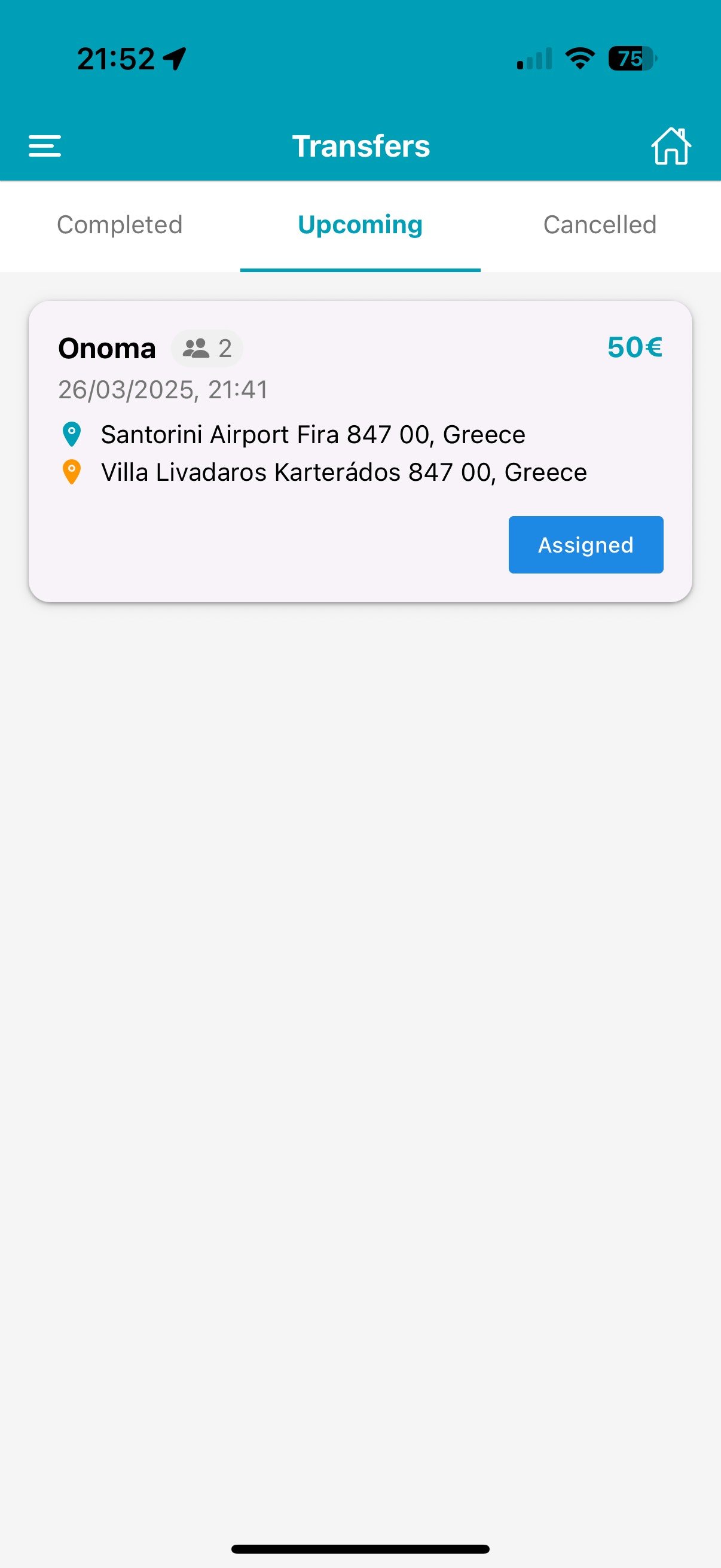
- Tap the settings icon (⚙️), found on the top right of the initial login screen.
- Enter the specific Company ID provided by your administrator.
- Confirm or save the ID. This only needs to be done once.
2. Login
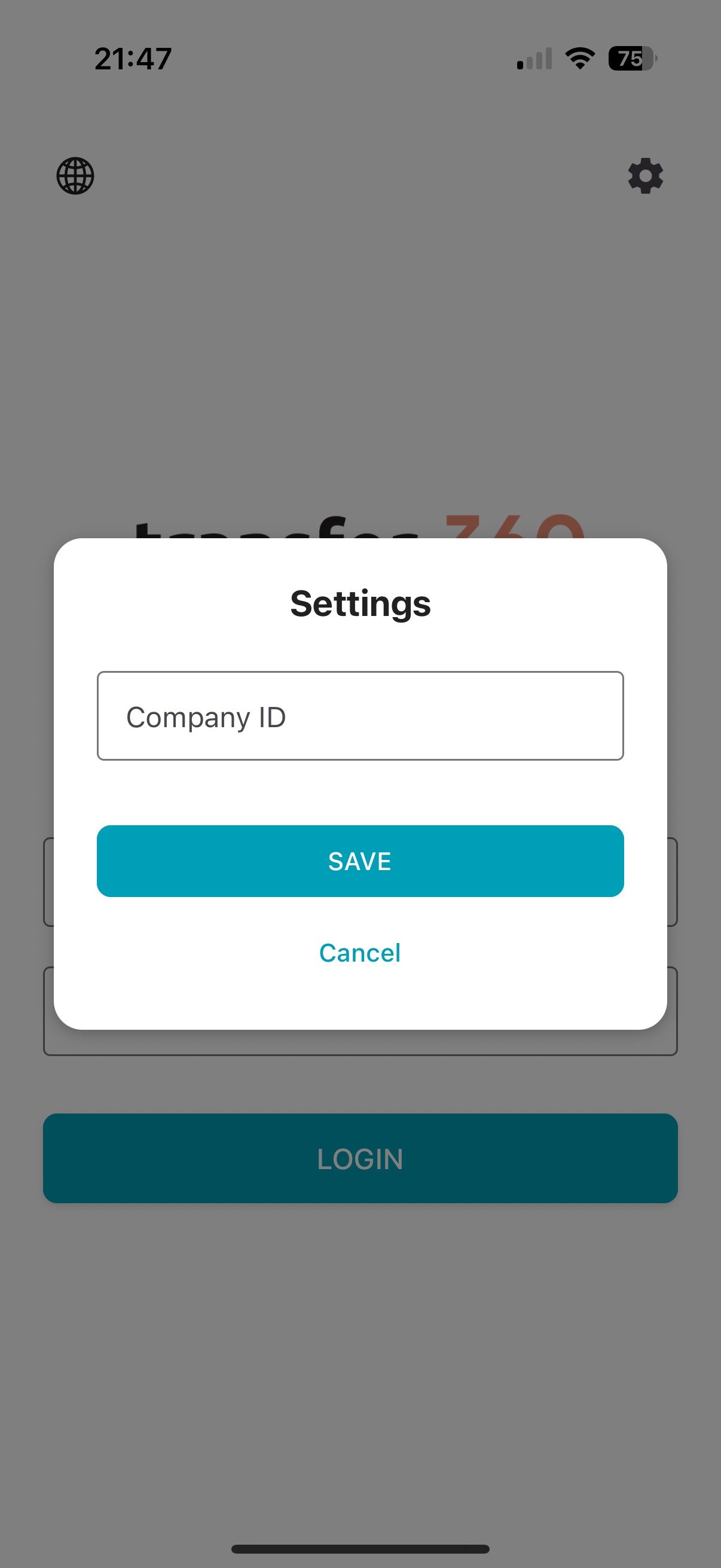
With the Company ID set, you can now log in. Use the email and password created for you by the administrator in the web portal (see Web App Guide, Step 3).
3. Configure Transfer Settings
Customize your document preferences within the app's settings menu.
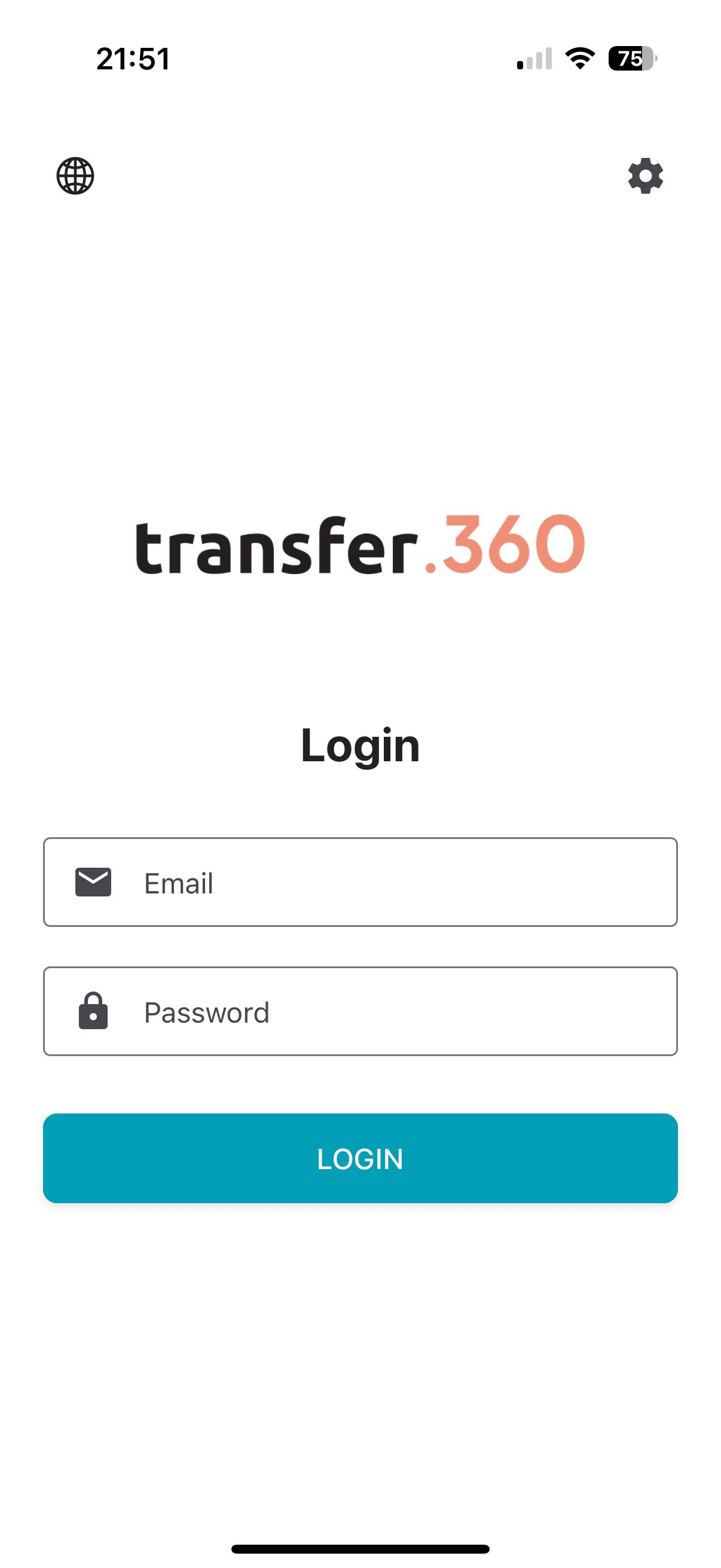
- Access the Settings menu.
- Find and select Transfer Settings.
- Adjust the options:
- Enable Download: Enable/disable automatic downloading of transfer paperwork.
- Enable Printing: Allow direct printing if your device is set up with a compatible printer.
- Document Size: Choose the appropriate format (e.g., A4, A5, Thermal Printer size).
- Save your chosen settings.
4. Viewing Assigned Transfers
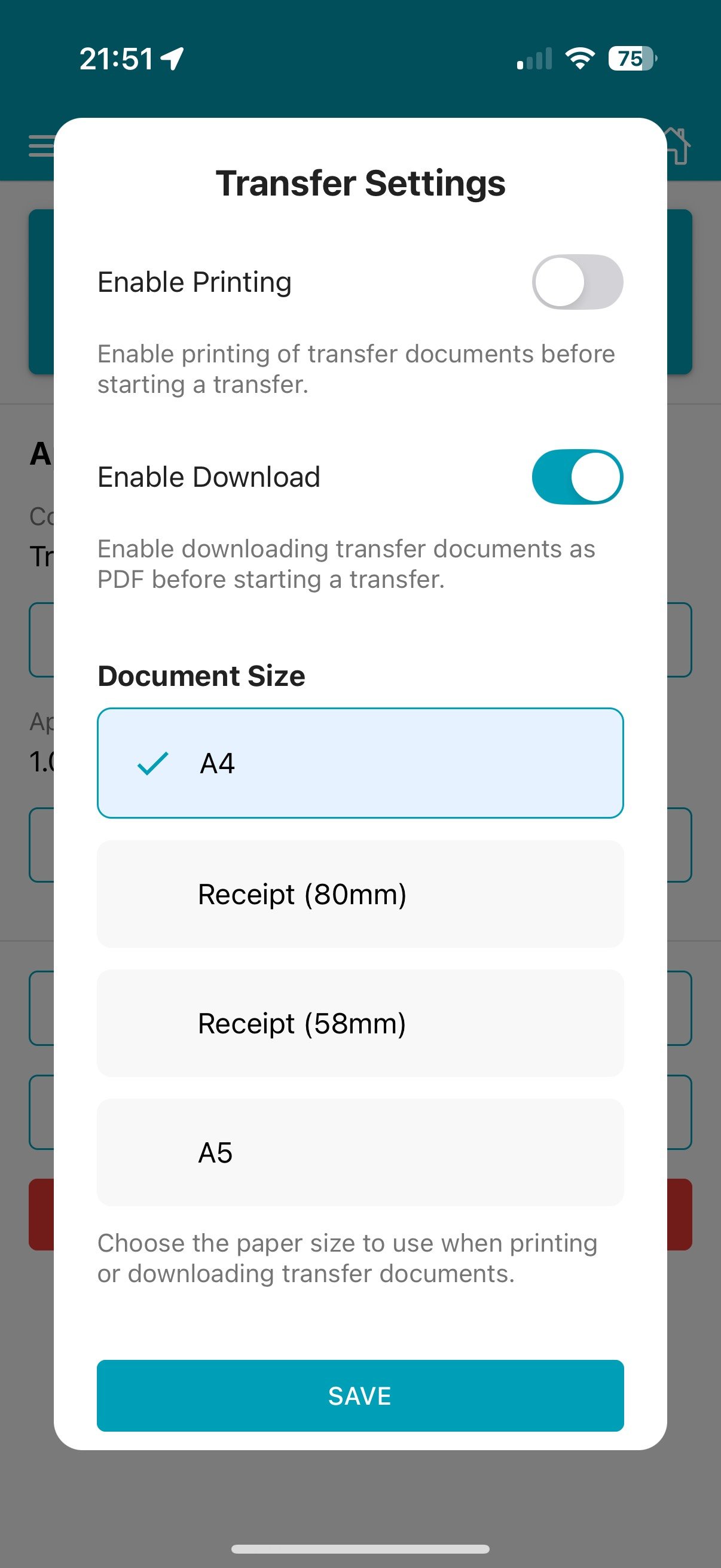
Your assigned jobs or transfers will be listed on the app's 'Transfers' screen after you log in. Tap on any assignment to view its full details, including addresses, times, and passenger information.